
Organizing Your Favorite Reaction Images on Your Phone
Organize favorite reaction images and GIFs into useful phone albums, keep private photos separate and find the right reply faster.
Somewhere on your phone is the perfect reaction image for a friend who has just announced a questionable plan. Unfortunately, it sits among seventeen grocery screenshots, a parking ticket, two photos of your shoes and a picture of a ceiling you don't remember taking.
A small reaction-image library can make chats easier and more enjoyable. You don't need advanced software or the administrative discipline of a national archive. You need a manageable set of favorites and a system you can remember when the joke arrives.
Decide which reactions you actually use
Before reorganizing everything, review the images you send regularly. You may find that a small set covers most conversations: delight, disbelief, sympathy, celebration and mild frustration.
Keep those favorites. Delete or archive images that are duplicates, unreadable or impossible to understand without a long explanation.
A reaction collection should help you communicate. If you have ten nearly identical pictures of a suspicious-looking cat, you may only need the best one. The cat will manage its disappointment with dignity.
You can browse reaction memes to fill genuine gaps, rather than collecting everything on the off chance somebody one day requests a specific expression of existential confusion.
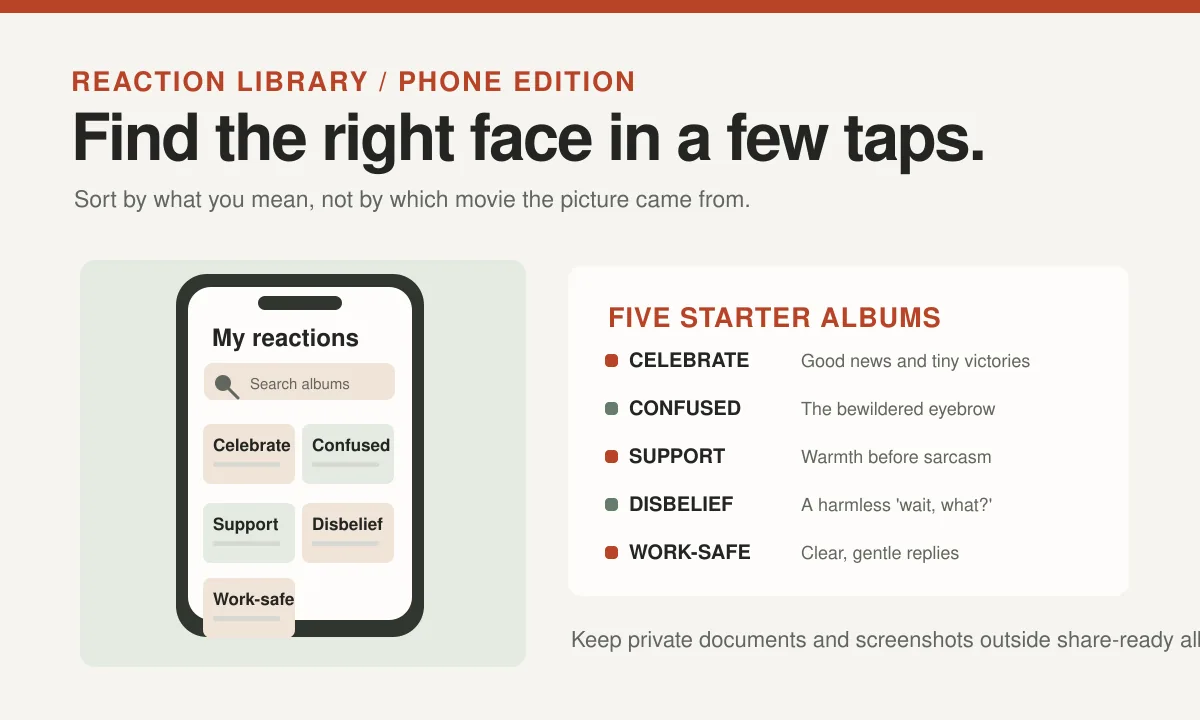
| Folder | Use it for | Helpful example |
|---|---|---|
| Celebrate | Good news and small wins | An unmistakably happy reaction |
| Confused | Unexpected details and questions | A raised-eyebrow expression |
| Support | Encouragement and sympathy | A gentle, affirming image |
| Disbelief | Minor absurdities and harmless surprises | An expressive surprised look |
| Work-safe | Mixed audiences and professional chats | A mild, context-friendly reply |
Use albums or folders with clear names
Most phones allow some form of album, folder or saved-item organization, though the exact controls depend on the device and app.
Try simple categories such as "Happy," "Confused," "Disbelief," "Support" and "Work-safe." These names describe when you might send an image, not the character or television show it came from.
You can also create a "Favorites" album for the ten or twenty reactions you use most often.
Avoid categories so elaborate that you need a spreadsheet to find anything. "Mildly suspicious animals on Wednesdays" may be a magnificent filing label, but it is not necessarily useful while someone waits for your reply.
The goal is retrieval speed, not a competition in taxonomy.
Keep an accessible original when you edit
A photo with a caption may work well for one conversation and poorly in another. Saving a clean version alongside the edited copy gives you flexibility.
If you crop an image, keep enough context to understand its expression. Save the final export at a readable resolution and check how it looks in the messaging app you use most.
Don't edit the only available copy if you might need to revise the text later. A simple duplicate is cheaper than trying to reconstruct a missing corner of a picture.
For tips on making original images, see turning your own photos into memes.
Separate your personal photos from meme material
The ordinary camera roll contains things you may not want to send by accident: documents, family photos, screenshots of private conversations and work information.
A dedicated album can reduce the chance of sharing a sensitive image while searching for a silly one. It won't eliminate mistakes, so still check the thumbnail and recipient before pressing Send.
Avoid storing other people's private photos in a public shared album without permission. A picture sent privately doesn't automatically become a group resource.
If you save a screenshot from a conversation, consider whether you actually need to keep it. Personal details can linger long after the original joke is forgotten.
Your collection should be funny, not a hidden archive of somebody else's confidential messages.
Give files useful names where practical
Some apps let you rename files or add searchable descriptions. When that is possible, use a plain label based on the emotion or action.
Names such as "confused-cat-reaction" or "small-victory-dance" are more useful than an automatically generated string of numbers and letters.
Don't rely entirely on file names, because many photo galleries and messaging apps don't expose them during selection. Albums and favorites can be more dependable.
A few useful labels also make it easier to review what you own. If an image has unclear reuse rights, record the original source separately rather than assuming it is safe to publish everywhere.
Our guide to finding an image creator explains the difference between remembering a file and establishing its provenance.
Know where your apps store the pictures
Saving an image from a web page, downloading a GIF and adding a sticker to a chat app may place the files in different locations.
Check the app's saving options and decide which location you want to use as your main library. Some messaging services offer built-in favorites, stickers or saved messages. Others rely more heavily on the phone's photo storage.
The exact interface can change after software updates, so treat instructions that mention a particular button as examples rather than permanent truths.
Test your setup once. Save an image, find it again and send it to a conversation where the recipient is happy to receive a test message. That is more useful than discovering the folder arrangement is broken during a crucial group-chat moment.
Keep the library light enough to maintain
A collection grows naturally. Every amusing face feels important when you first save it, especially the one involving a duck who appears to be questioning the budget.
Set aside an occasional review. Remove duplicates, archive rarely used items and make sure the favorites still reflect your friendships and interests.
Some old formats remain funny because the people you talk to share their history. Others have stopped feeling relevant. You don't have to keep every image just because you once sent it successfully.
For more on repeated templates, read why old meme formats keep coming back.
Think about backup and privacy
If your reaction library matters to you, check whether the images are included in your usual photo backup system. A saved folder that exists only inside one app may disappear when you change phones or reinstall the app.
Don't assume every cloud-sync or shared-album setting is private. Review who can access a folder, especially if your phone is connected to a family or work account.
A modest library is easier to migrate than thousands of poorly labeled screenshots. You may also choose to keep only original or properly licensed images for public publishing projects.
Personal messaging and public commercial reuse can raise different rights questions. An image in your private favorites is not an automatic authorization to place it on a website.
Make the right reply easy to find
Once the system works, the process should feel effortless: open your favorites, choose a fitting expression and return to the conversation.
The strongest reaction is still the one that matches the person's message. A brilliantly organized folder cannot rescue an insulting joke sent at the wrong moment.
Our guide to choosing the perfect reaction meme can help when you have too many options.
The real victory is being able to locate the bewildered cat in a few taps. Your phone can keep the photographs of shoes in a separate, quieter chapter of its life.